A tablet can act as a USDC payment display without a dedicated terminal. Open a PayIn POS display link in its browser, place it facing customers, and let customers scan the QR with their own phones. The tablet presents the request; customers approve payment in their own wallets.
This is a browser-based display for USDC on supported networks. It is not a card reader or a cash register, and it does not provide contactless card payments, inventory or automatic cash reconciliation.
Using an Android tablet as a USDC payment display
An Android tablet can provide the browser screen at a staffed counter; it does not need the merchant's wallet recovery material. Open the separate POS display link, place the screen toward customers and check the controls on that specific device before the shift.
| Before opening | What to check on the tablet |
|---|---|
| Display | The whole QR is visible, with readable context and no glare or packaging in front |
| Sound | Use the display's sound activation/test controls and check the actual output device and volume |
| Language | Choose a display language for customers and an announcement language staff understand |
| Screen timeout | Review the device's display settings and operating procedure so the screen stays available during service |
| Connectivity | Keep the POS page visible and connected; do not rely on a background or locked browser to announce payments |
| Recovery | After sleep, a browser restart or a network interruption, reopen the display and check sound readiness again |
Setting names and behavior vary by Android device and browser. Chrome's autoplay policy explains why audio can require user interaction; do not assume opening the link alone enables audible announcements. A test sound checks the device's audio path, not receipt of a blockchain payment.
This is a browser operating checklist, not a certification of every Android model. It does not establish NFC/card-reader support or direct Samsung Wallet checkout compatibility. A customer still follows the supported payment flow on their own phone.
If a payment may have been submitted during an interruption, inspect the existing record before collecting again. Recovered history is not a promise that all missed announcements will be replayed. The sound troubleshooting guide covers further checks.
Why the display matters while staff are working
The PayIn USDC POS display gives the buyer a QR to scan and staff an optional spoken amount for a newly confirmed payment. That feedback helps when the seller is packing goods or serving a queue instead of repeatedly checking a wallet.
If you are looking for a crypto POS terminal, distinguish a payment display from a full till: the current display does not accept cards, manage stock or calculate a shopping basket. For online customers, share a USDC payment link instead of the private display URL.
What you need at the counter
Use an internet-connected tablet or phone, a compatible receiving wallet, and a PayIn receiving setup. Customers need a compatible wallet and USDC on an accepted network: Base, Polygon or Solana. Prepare the receiving token account if using Solana.
The display device does not need to hold your wallet or signing keys. Create a link with your chosen receiving address and keep the wallet itself separate from the customer-facing screen.
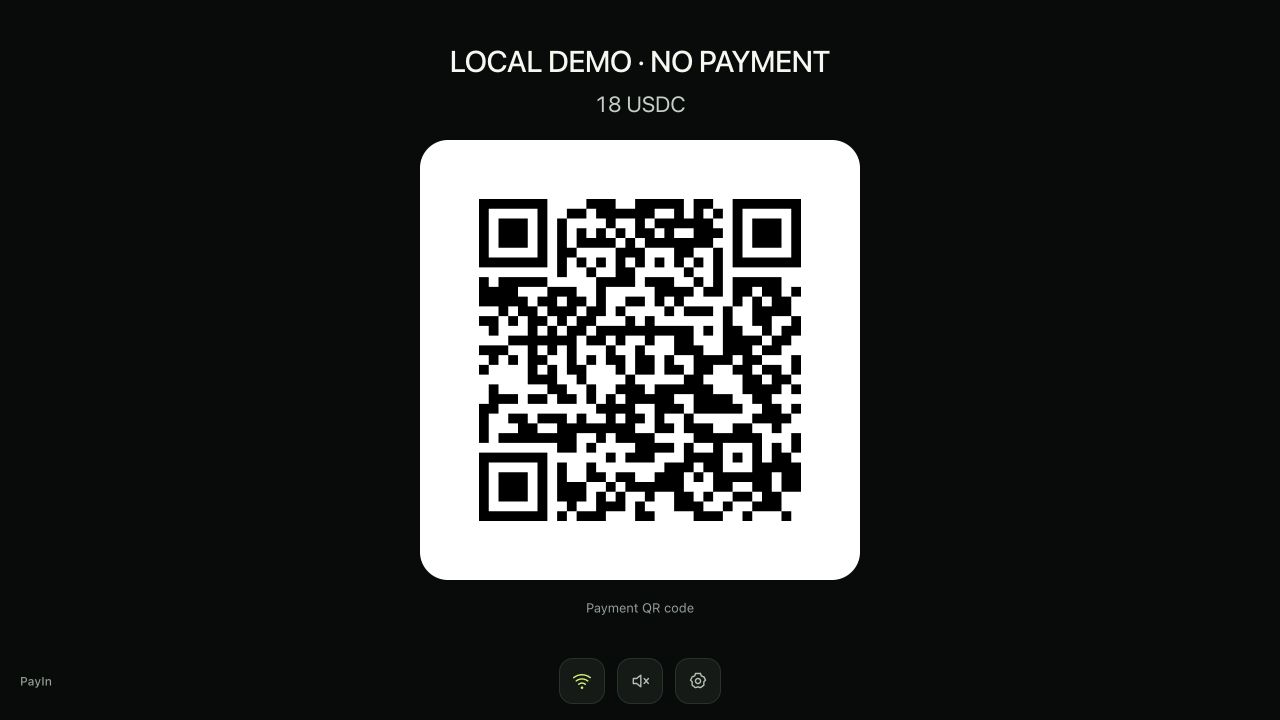
Actual product interface in a local fixture, labeled LOCAL DEMO · NO PAYMENT. The QR opens this guide, not a payment request.
Set up the display
- Create a payment link with a recognizable title and either a fixed or customer-entered amount.
- Save the private management link from the success screen.
- Open management, choose Links, then open or copy POS display.
- Open that POS link in the browser on your counter device. No device-pairing step is required.
- Check the connection indicator, then tap the sound control and test audio before serving customers.
The QR remains the center of the page. The payment title and any fixed amount identify what is being paid for; staff settings stay out of the main customer view.
Choose the amount mode for your counter
For one product or an entry fee, a fixed amount makes the request simple to review. For a stall with different purchase totals, customers can enter the agreed amount on their phones.
For example, if a customer buys items totaling 18 USDC, say or show “18 USDC” before they scan. Confirm the received amount matches 18 USDC before handover. A payment for a smaller amount does not become correct just because its transaction completed.
PayIn does not automatically receive totals from your till. If you need an itemized basket or a different amount pushed from a register for each sale, treat that as a separate product or integration requirement.
Use audio and language settings deliberately
The settings control opens a dialog: on a phone it fills the screen, while on a larger screen it is a centered modal. Display language and spoken announcement language are independent, so customers can read one language while staff hear another.
Most browsers require an interaction before audio can play. Tap to enable sound on the actual device you will use; a previous test on another phone does not enable this one. Keep the browser in the foreground. Locking the screen, background restrictions and silent-mode behavior can interrupt announcements.
The test sound is only a test. It does not create a payment record or display a real payment success.
What customers and staff see
Customers scan the QR, open the payment page on their phones, review the amount and network, then approve with a compatible wallet. A newly confirmed payment briefly displays its amount on the POS and can trigger audio before the display returns to the QR.
The POS is deliberately not a history dashboard. Staff use the management page for earlier records and unclear results. The connection indicator is visible on the main display; if it shows a problem, restore connectivity and reconcile the payment before asking the customer to try again.
Keep public and staff links separate
Print or publicly share the Payment link QR. Keep the POS display URL for devices that need live payment status, and keep the management link private. Someone holding the POS link can see payment events; they do not need management permissions to use it.
If the POS link is exposed, reset it from management and update your counter devices. Resetting it invalidates the old display access. It does not require you to replace the public customer payment link.
Run a counter readiness check
Before opening, confirm the correct title, amount mode, visible QR, connected state and audible test on the actual device. Make sure the screen stays on and staff know where to check history. Do not treat a frozen success screen or a customer's screenshot as evidence of a new sale.
For QR printing and placement, read how to accept USDC with a QR code.
For an opening-to-closing routine, read USDC payments at a market stall or pop-up. It covers choosing amount modes, matching a receipt to a sale and end-of-shift reconciliation.
For the staff workflow behind the settings, read accepting USDC without checking a wallet after every sale.
Walk through one counter sale
The interface image above shows the customer-facing scan screen, with sample data only. The QR opens a guide, not a request for money.
- Prepare: place the screen toward the customer, check connectivity and enable audio on the actual device.
- Request: state the sale total and let the buyer scan the public payment QR. The buyer uses their own phone and wallet.
- Notice: a newly confirmed receipt can display its amount and trigger enabled audio; compare it with the sale in progress.
- Resolve: if a result or equal amount is ambiguous, use management and the transaction reference before handing over goods or collecting again.
These steps describe the supported flow, not a recorded live transaction or a settlement-speed test. The actual sound and language controls from the same local fixture are shown below.
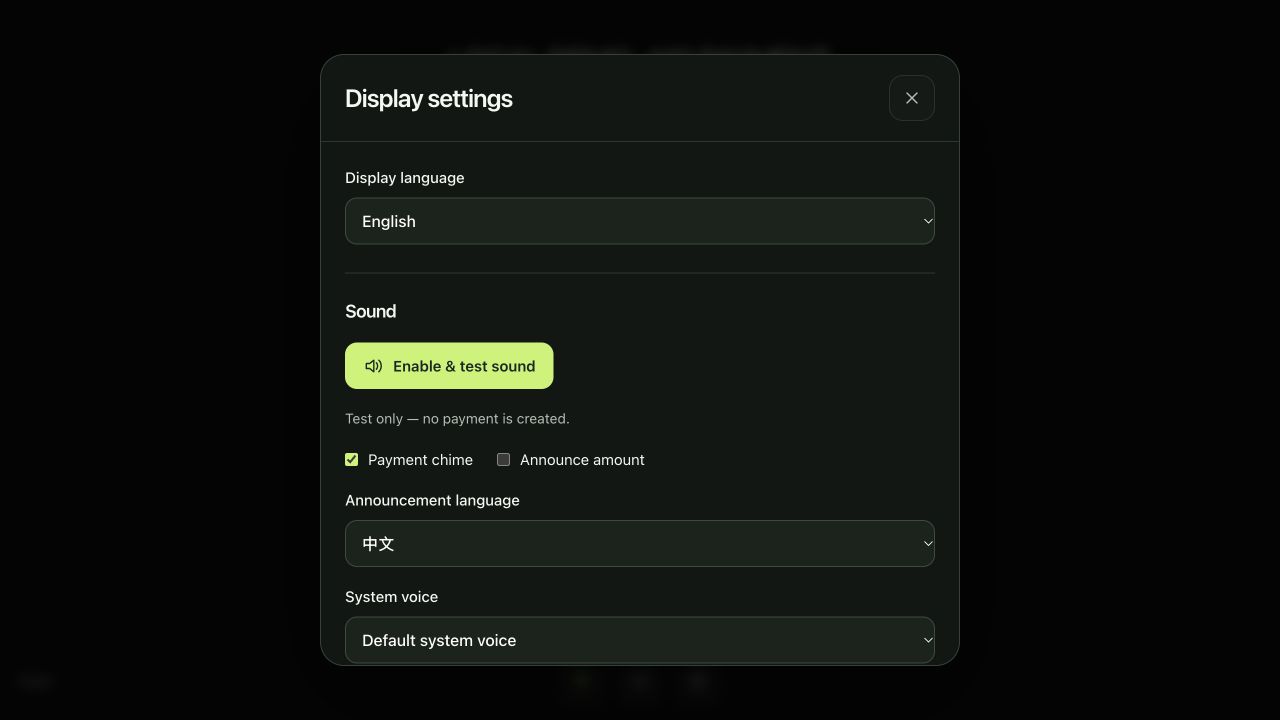
Actual product settings in a local fixture. Display language is English while announcement language is Chinese, illustrating their independence. No wallet signature, blockchain transaction or real customer data; this screenshot does not demonstrate live payment or announcement timing.
For staff access, read accepting USDC without sharing the merchant wallet. For shift closeout, follow reconciling a day of USDC sales.