A tablet can display a payment QR while a nearby seller listens for a newly confirmed amount. For a market stall or pop-up shop whose customers already use USDC, this can provide a simple counter payment flow without dedicated POS hardware.
The useful design separates three tasks: customers scan the public payment link, staff run the customer-facing POS display, and the owner checks records in management. A QR alone does not replace your prices, order tracking or handover process.
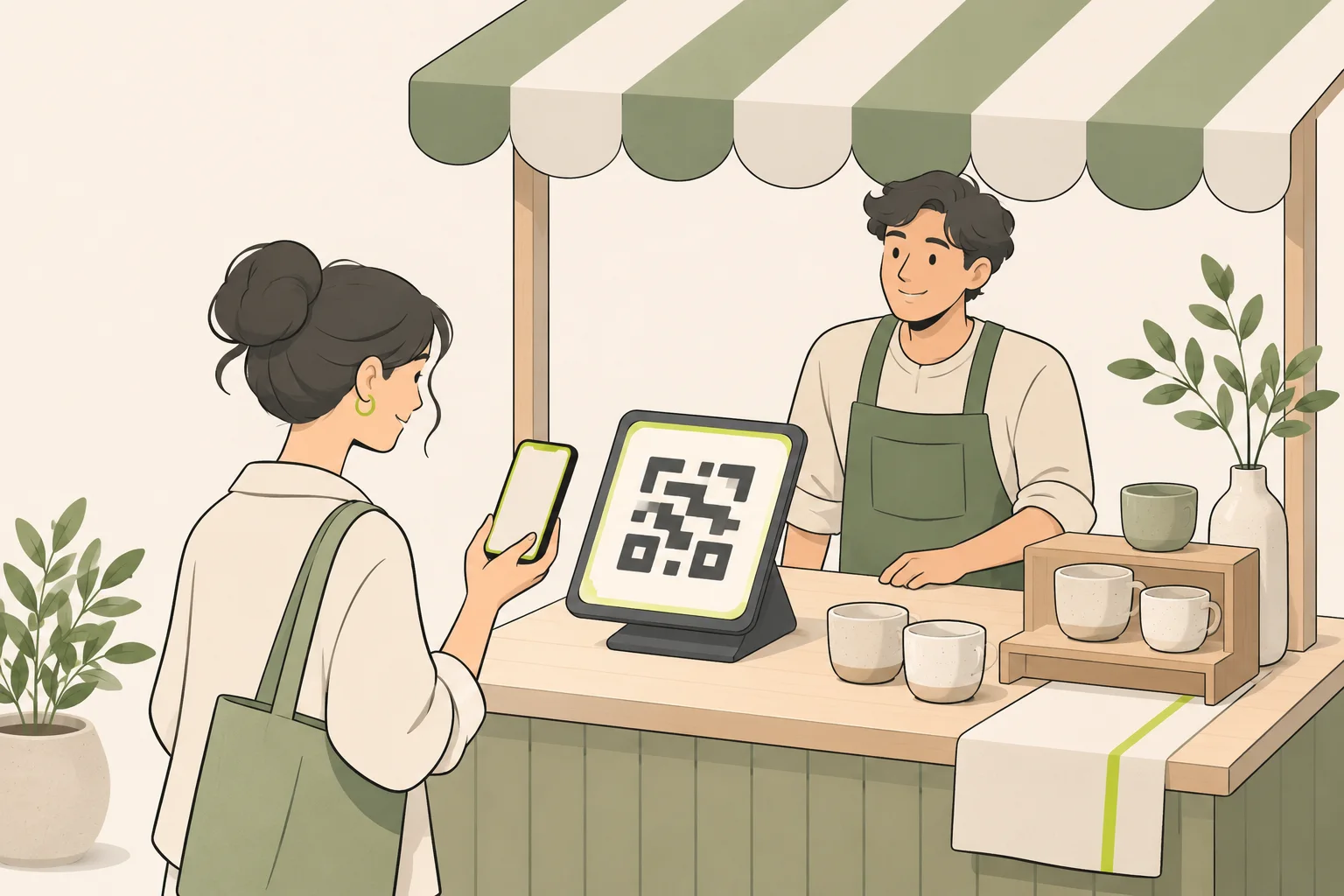
AI-generated concept illustration, not a product screenshot or a real payment. The scan pattern is illustrative.
Decide whether your customers are ready
USDC checkout is most useful when buyers already have a compatible wallet and USDC on a network you accept. PayIn currently supports Base, Polygon and Solana. Prepare each receiving network before enabling it; Solana also needs its associated USDC receiving account ready.
A busy queue is a poor place to make a first-time buyer install a wallet and fund it. Keep another payment option in your own sales process when appropriate, and state prices and accepted networks clearly. A browser checkout is not a card terminal or an automatic fiat conversion service.
Choose fixed or customer-entered amounts
For a stall selling one item at one price, a fixed-amount link reduces manual entry. For a changing basket total, a customer-entered amount can be more practical, provided staff tell the customer the total and verify the completed amount.
| Example sale | Amount mode | Staff check |
|---|---|---|
| One 12 USDC mug | Fixed | Correct quantity and confirmed amount |
| Mixed basket totaling 27 USDC | Customer-entered | Customer entered the agreed total |
| Optional contribution | Customer-entered | Keep it separate from a fixed retail price |
These are illustrative examples. PayIn's standard reusable link is not a shopping basket, inventory system or per-order invoice generator. It does not automatically calculate a cart or identify which buyer purchased which items.
Prepare before the shift
Create the link with a title customers recognize, such as your stall name or a specific product. Review the receiving addresses and save the private management link. From management's Links section, open POS display on the tablet and keep the public Payment link available for sharing.
Creation and current use are free without registration. Protect the management URL as an access key; it belongs in the owner's saved records, not on the stall sign.
Use the Base receiving guide or Solana account checklist when preparing the network. For the complete form flow, see Create a free USDC payment link.
Set up the customer-facing tablet
Place the QR where a customer can scan it without reaching behind the counter. Check glare, screen brightness, power and a reliable internet connection. Keep the connection indicator visible.
Tap the sound control to activate this device's audio and use the test sound before opening. A browser needs a user interaction for audio; a successful test sound does not create a payment or prove receipt. Display language and announcement language can be set independently.
Keep the POS browser active. Background tabs, locked screens and operating-system restrictions can interrupt audio. If several devices have sound enabled, more than one may announce the same receipt. Choose which device staff should listen to.
The tablet setup guide covers layout and device behavior. For silence after activation, use the sound checklist.
Use a repeatable handover routine
- Confirm the basket and tell the customer the USDC total.
- Let them scan and approve payment in their wallet.
- Wait for the result, then match the newly confirmed amount to this sale.
- Check management when the timing, amount or transaction is unclear.
- Mark the sale as fulfilled in your own records.
The POS briefly shows a new successful receipt and can announce the amount. Staff should not treat a sound heard earlier as proof of the current customer's payment. Two customers can pay the same amount close together, so preserve a transaction reference when matching is ambiguous.
Handle a stalled checkout without collecting twice
Awaiting payment is an attempt. Unsubmitted attempts expire after 15 minutes; an expired attempt remains in history. Already submitted or confirming transactions continue to be checked. Reconcile an existing transaction before asking the buyer to try again.
If the POS disconnects, use management to check the record rather than assuming silence means failure. A transfer made manually to your wallet outside checkout may require separate inspection and may not produce the normal POS notification.
Close the shift with a short reconciliation
Review completed payments, compare them with sales you handed over, and export records when needed. Keep expired and failed attempts separate from actual receipts. Track refunds as separate business actions and verified transfers; changing a record or pausing new collection does not reverse an on-chain payment.
Create a link and prepare the counter before your next market day.