Your hands are folding a paper bag. The customer in front of you says they have paid, and the next customer is waiting to order. Opening your wallet after every sale turns a payment check into another task at the busiest moment.
A wallet gives your business somewhere to receive USDC. A counter payment tool helps the people running the sale notice the result and act on it. With PayIn, a customer-facing display presents the payment QR, and an enabled sound announcement can tell staff the amount of a newly confirmed payment.
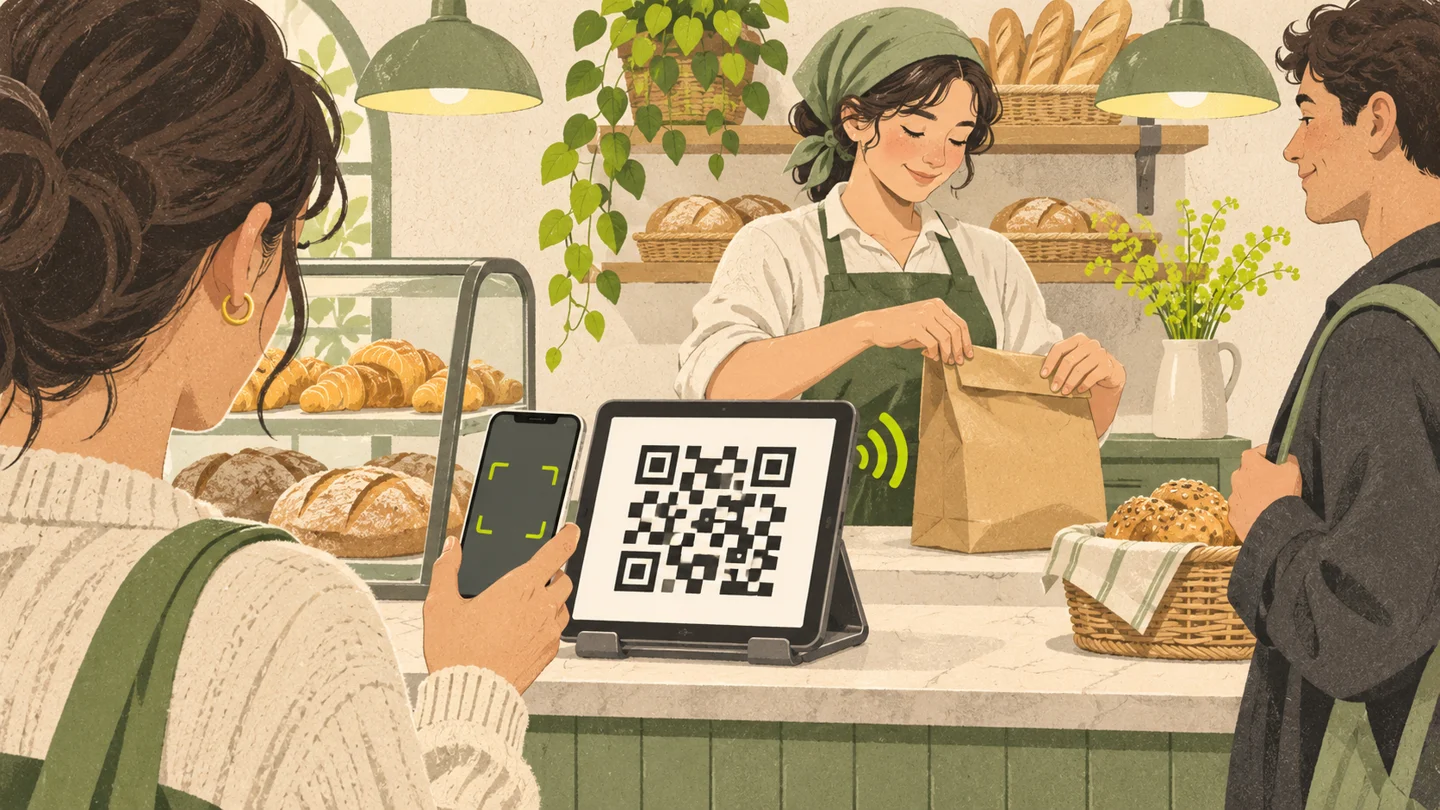
AI-generated concept illustration, not a PayIn screenshot or evidence of an actual payment. The QR-like pattern is nonfunctional; sound-wave marks illustrate a notification.
Build the counter around the handover
Consider a bakery selling a box for 18 USDC. The useful sequence is simple: agree the total, let the buyer scan, receive a clear payment result, and hand over the correct box. The seller should not need to pass a merchant wallet around or ask the buyer to show a private wallet screen.
The customer scans the public payment link from the tablet and completes the supported wallet flow on their own phone. The tablet runs the separate POS display. The receiving wallet and private management access stay with the owner.
That separation matters when the same person takes orders and packs goods. The display gives the customer a consistent place to start; the announcement gives staff a cue without requiring them to keep watching the screen.
Make the announcement useful, rather than just audible
An amount is more informative than an anonymous chime. If the agreed total is 18 USDC and staff hear a different amount, the sale needs checking before delivery. Display and announcement languages can be chosen independently, which can help when the customer and staff prefer different languages.
Activate audio on the actual counter device before opening and use its test sound. Keep the browser visible, powered and connected. A test establishes that the device can play audio; it does not establish that a customer has paid.
Choose which device staff should listen to. Two displays with audio enabled can announce the same payment twice. Two sounds therefore do not necessarily mean two receipts.
For device instructions, use the POS setup guide. If announcements stop, follow the sound troubleshooting checklist.
A new sound belongs to a new payment, not automatically to this customer
During a queue, another person might pay an earlier request while the current buyer is still signing. Staff should match the newly confirmed amount to the sale they are completing. When two people owe the same total, check the payment reference and your own sale record instead of guessing from the amount alone.
The POS briefly shows a new successful receipt and can announce its amount before returning to the QR. Use management for history and ambiguous results. A buyer saying “done,” a signature prompt or an earlier sound is not the same as a newly verified receipt.
See matching equal-amount payments for the situations where a quick amount check is insufficient.
Keep the queue moving before anyone scans
State the price in USDC and accepted networks before checkout. Customers need a compatible wallet and supported USDC on a network enabled for the link. Wallet installation or moving funds between networks is a separate preparation task, best handled before reaching the counter.
For a single-price product, a fixed amount reduces entry work. For mixed baskets, tell the customer the total clearly and check the amount they enter. PayIn does not automatically calculate a basket or pull totals from your till.
Base and Solana can support responsive payment flows, but the full experience also depends on the phone, wallet prompts, connectivity and settlement services. Do not promise a fixed checkout time based on a blockchain's block interval.
Give staff an exception routine
If nothing sounds, check the display connection and management record. Silence alone does not mean the buyer has not paid. If a transaction is already submitted or confirming, reconcile it before requesting another payment.
A manual transfer directly to your wallet is a different route. It may need inspection in the wallet or explorer and may not appear as a PayIn checkout receipt or trigger its announcement.
The operating rule is: use the sound to notice, the amount to match, and the payment record to resolve uncertainty. Keep fulfillment in your own sales process.
Explore the customer-facing POS display, or follow the payment verification guide to define your team's handover checks.
For a step-by-step view of waiting points, read what slows down a USDC checkout when customers are waiting.