A customer wants an 18 USDC mug while two people wait behind them. Showing a wallet address lets the buyer attempt a transfer. The merchant still needs to communicate the amount, notice completion while wrapping the mug and know when to hand it over.
This fictional sale illustrates the workflow around a payment. Solana provides the network; a payment request, customer-facing display and optional sound help the people at the counter coordinate it. No real payment is shown here, and the example does not promise a fixed checkout time.
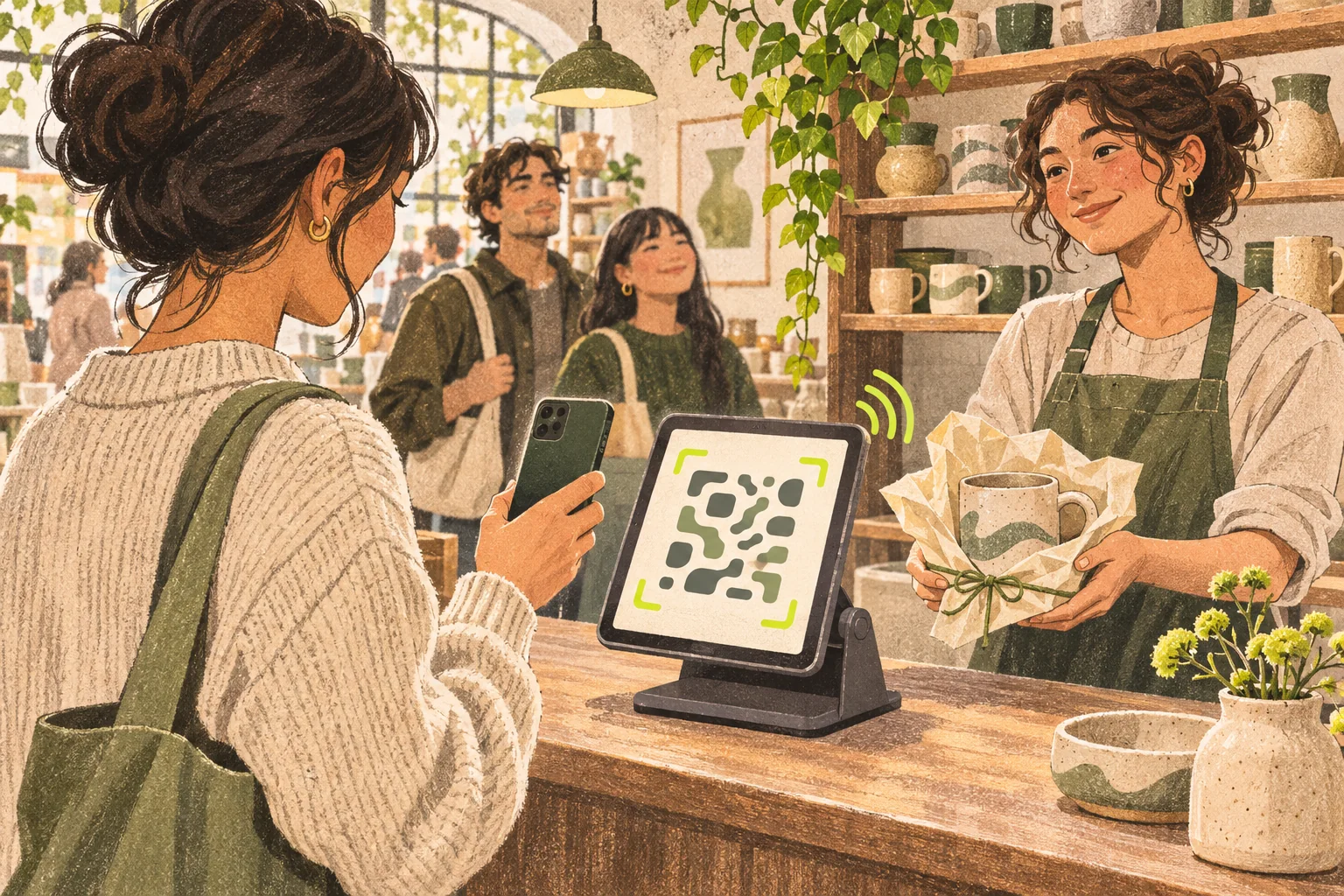
AI-generated concept illustration, not a PayIn screenshot or real payment. The tablet screen faces the customer. Its scan pattern is nonfunctional, and the sound marks illustrate an optional announcement rather than proof that this buyer has paid.
Before opening: prepare the receiving side once
The owner configures a recognizable payment-link title, the correct Solana wallet address and the intended amount mode. The wallet's associated account for the official USDC mint must already exist: PayIn checks it and stops checkout if it is absent, rather than creating it during the sale.
Use the receiving-address walkthrough if you are still locating the address, and the Solana receiving-account guide for the mint and ATA checks.
The owner saves private management access. Staff open the separate POS display link on the counter device; they do not need the merchant wallet's signing keys. PayIn currently requires no merchant registration and is free to create and use. Network operations and external services have separate requirements or costs; current pricing is not a permanent guarantee.
Put the screen where the customer can actually scan it
Mount the tablet with its screen facing the customer, leave the QR unobstructed and avoid glare. A private POS display link belongs on the staff-controlled device. The QR it displays opens the public customer payment page; do not print the private link on a counter sign.
Activate sound on that actual tablet and keep the display active and connected. Display language and announcement language can be selected separately. Browser audio restrictions, muted output, device sleep or a lost connection can interrupt the experience; the sound troubleshooting guide covers those checks.
The POS guide includes the actual interface with clearly labeled local sample data. The illustration here shows counter placement, not a substitute product screenshot.
Agree on the 18 USDC total before the scan
For this sale, the buyer and clerk agree that the mug costs 18 USDC. If using a fixed-amount link, the request must match that total. If using a customer-entered amount, staff should make the agreed amount explicit and check the completed amount afterward.
A reusable payment link does not add up a shopping basket, apply inventory changes or identify which waiting customer owns an order. Keep the physical order beside its total or a separate order reference until payment is matched.
The buyer scans and reviews the request
The customer scans the displayed QR, checks the merchant title and amount, selects Solana if prompted, and follows the wallet flow shown on the payment page. The request is a web checkout; it is not a promise that every wallet's native Solana Pay scanner can execute it directly.
If the buyer says “I have USDC, but this won't work,” check the network holding their funds before sending them back through repeated attempts. USDC elsewhere is not automatically available on Solana. The customer payment-preparation guide separates funding, wallet and merchant-account obstacles.
Keep the mug until this payment is completed
The clerk can continue wrapping while staying attentive to the display and any newly announced amount. The announcement draws attention to a payment event; it does not identify the customer by itself.
| Signal at the counter | What it tells staff |
|---|---|
| Buyer has connected a wallet | The flow has started; it is not a completed payment |
| Buyer approved a wallet request | An authorization step occurred; inspect the resulting payment status |
| POS shows a new confirmed amount | Match the completed event, amount and timing to this order |
| Two buyers owe the same amount | Amount alone is ambiguous; match separate records before either handover |
| Buyer shows a screenshot or an old announcement is heard | Independently check the merchant's current record |
For an ambiguous event, the owner or trusted operator can inspect management records and the transaction reference using the verification guide. The current POS's transient amount display is not a full payment-history screen. Do not assume staff can resolve a crowded queue by scrolling a POS history that is not there.
If a submitted payment is taking longer, keep its reference
Ask the buyer whether the operation has already been submitted. If it has, preserve the payment or transaction reference and investigate that operation before requesting another payment. A lost browser connection does not prove the transaction failed.
Fast network processing helps, but the whole checkout also includes scanning, wallet interaction, customer review and application confirmation. Avoid advertising an exact end-to-end duration. The counter speed guide explains which waiting points the merchant can improve.
Handover closes the sale; records close the shift
Once the new completed payment is matched to the mug and 18 USDC total, staff hand over the wrapped order and mark it in the shop's own order record. PayIn does not automatically complete inventory or fulfillment just because a payment was received.
At shift end, use the private management view and filtered CSV alongside the shop's order log. End-of-day reconciliation explains the date and status checks. Record any manual transfer outside checkout separately; it is not guaranteed to appear in PayIn's history or trigger a POS announcement.
For the next market day, prepare a customer-facing POS display and staff access without sharing the owner wallet. The useful outcome is a visible request and a clear handover decision while the queue keeps moving.